How to Connect Magica to Claude and Other AI Assistants
If you’ve read how you can talk to your car data with AI, here’s the practical part: how to actually connect Magica to Claude — or Cursor, Codex, Continue, any modern MCP client — so it can read your vehicles, trips and expenses, and (if you allow it) log refills and services for you.
The whole thing takes a few minutes. Everything runs on your device; nothing goes to a cloud of mine. This is an early-access feature, so expect the occasional rough edge.
Before you start
You’ll need:
- Magica installed on your phone (iOS or Android), with some data in it.
- Your phone and your computer on the same Wi‑Fi network.
- An AI assistant that speaks MCP over Streamable HTTP — Claude Desktop, Cursor (≥ 0.40), Codex CLI, Continue, and others.
Step 1 — Turn on API Mode and read the address
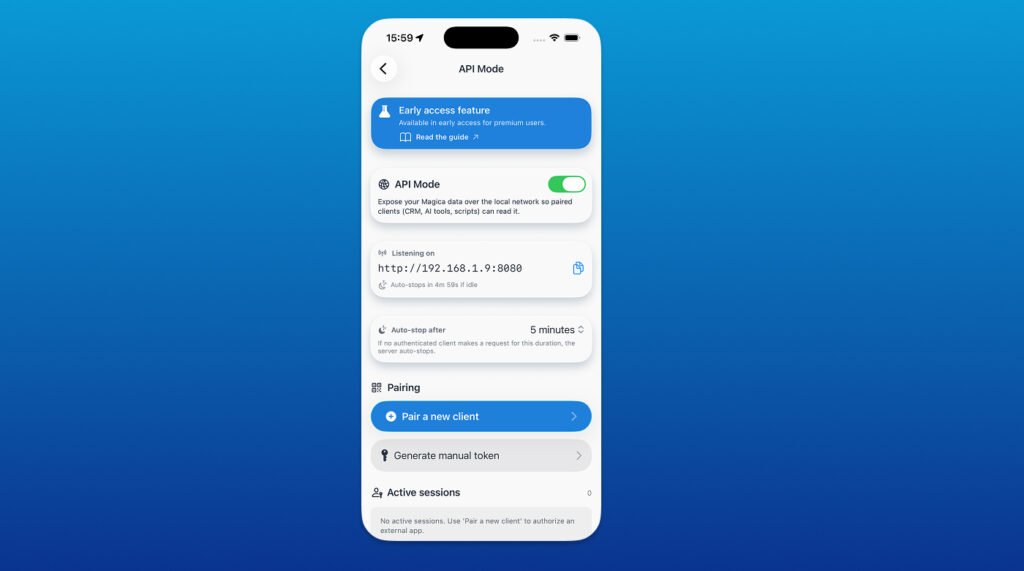
- Open Magica → Account → API Mode.
- Toggle it on (top right).
- Under “Listening on” you’ll see the server address, e.g.
http://192.168.1.42:8080. Note it down.
The MCP endpoint you’ll point assistants at is that address plus /api/v1/mcp:
http://192.168.1.42:8080/api/v1/mcp
Tip: the server auto-stops after a few minutes of inactivity to save battery. For a long session with an assistant, set Auto-stop after → 1 hour (or Never, if you’ll remember to switch it off). The setting sticks.
Step 2 — Generate an access token
Every request needs a token. For an AI assistant you want a persistent one so it doesn’t ask you to approve every conversation:
- In API Mode, tap Generate manual token.
- Give it a name (e.g. “Claude Desktop”), pick a mode: – Read — the assistant can look but not change anything. Safest starting point. – Read & write — it can also log refills, record services and edit trip notes.
- Choose a duration (30 days is a good default) and tap Generate.
- Copy the token now — it’s shown once. Paste it somewhere safe.
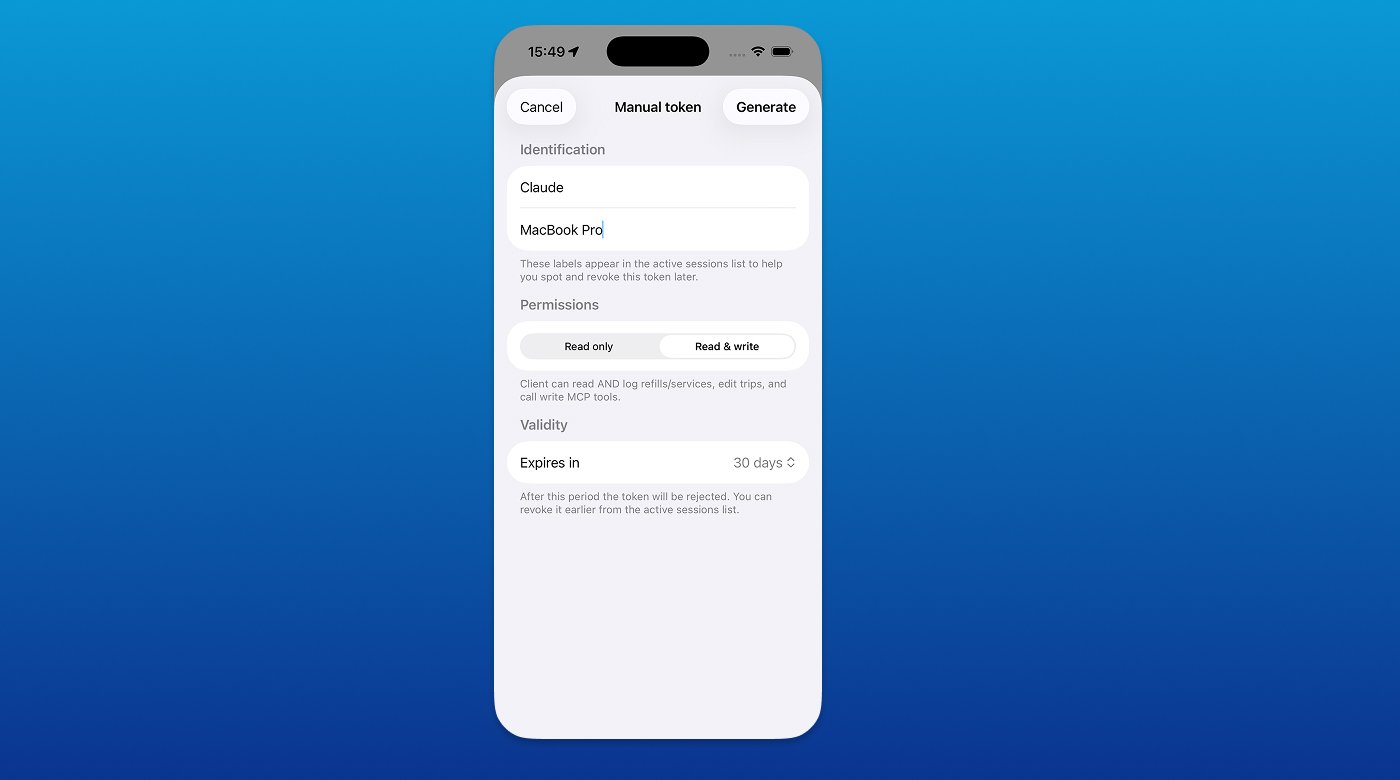
Give each assistant its own token. In API Mode → Active sessions you can see who’s connected and revoke any single client with one tap.
Step 3 — Add Magica to your assistant
Pick your client below. In every example, replace the address with your own and paste your token.
Claude Desktop
Claude Desktop’s built-in custom connector only accepts HTTPS URLs, and Magica runs on plain HTTP over your LAN — so on a home network you connect through a small stdio bridge called mcp-remote (it needs Node installed).
Edit your Claude Desktop config file:
- macOS:
~/Library/Application Support/Claude/claude_desktop_config.json - Windows:
%APPDATA%\Claude\claude_desktop_config.json
{
  "mcpServers": {
    "magica": {
      "command": "npx",
      "args": [
        "-y",
        "mcp-remote",
        "http://192.168.1.42:8080/api/v1/mcp",
        "--allow-http",
        "--header",
        "Authorization: Bearer YOUR_TOKEN_HERE"
      ]
    }
  }
}
The --allow-http flag is required: mcp-remote refuses non-HTTPS addresses without it, because Magica is LAN-only HTTP by design. Save the file and fully quit and reopen Claude Desktop (⌘Q, not just close the window).
Cursor
Edit ~/.cursor/mcp.json (or go through Settings → MCP Servers):
{
  "mcpServers": {
    "magica": {
      "url": "http://192.168.1.42:8080/api/v1/mcp",
      "headers": {
        "Authorization": "Bearer YOUR_TOKEN_HERE"
      }
    }
  }
}
Restart Cursor. The Magica tools appear in the chat panel.
Codex CLI
In ~/.codex/config.json:
{
  "mcpServers": {
    "magica": {
      "url": "http://192.168.1.42:8080/api/v1/mcp",
      "headers": {
        "Authorization": "Bearer YOUR_TOKEN_HERE"
      }
    }
  }
}
Continue (VS Code)
In ~/.continue/config.json:
{
  "experimental": {
    "modelContextProtocolServers": [
      {
        "transport": {
          "type": "streamable-http",
          "url": "http://192.168.1.42:8080/api/v1/mcp",
          "requestOptions": {
            "headers": { "Authorization": "Bearer YOUR_TOKEN_HERE" }
          }
        }
      }
    ]
  }
}
Any other MCP client
Point it at http://<phone-ip>:8080/api/v1/mcp, transport Streamable HTTP, with the header Authorization: Bearer <token>. That’s all Magica needs.
Step 4 — Verify it works
With API Mode on and the client restarted, just ask:
What vehicles do I have?
The assistant should call Magica, come back with your real car(s), and you’re connected. Try a real question next — “How’s my car this month?” — and you’ll see it pull live numbers.
Connecting from outside your home network
Magica is LAN-only by design, but if you set up your own encrypted tunnel it works from anywhere. The simplest option is Tailscale: install it on your phone and your computer, then use the Tailscale IP instead of the LAN one. From Magica’s point of view you’re still “on the LAN”, so everything above works unchanged. (For a public HTTPS URL you can use a Cloudflare Tunnel from an always-on machine on your network — more moving parts.)
Never just forward port 8080 on your router: that would expose your token and data in the clear on the public internet.
Troubleshooting
The assistant sees no Magica tools. Check API Mode is on and the server hasn’t auto-stopped. Fully restart the client (Claude Desktop especially needs a complete quit).
HTTP 401 / “authentication required”. The token is expired, revoked, or wrong. Generate a fresh one and update the config. Note: if you reinstalled Magica, all older tokens become invalid — regenerate.
mcp-remote exits with “Non-HTTPS URLs are only allowed for localhost…”. You forgot --allow-http in the args. Add it.
Claude logs show an OAuth 404 / “Unexpected end of JSON input”. That’s a knock-on effect of a failed auth, not a real OAuth problem — almost always an expired or mismatched token. Regenerate the token, update the config, fully restart Claude.
HTTP 403 — requires readwrite. You gave the assistant a read-only token and it tried to log something. Generate a read-and-write token if you want to allow writes.
The server stopped mid-conversation. Idle auto-stop. Turn API Mode back on, and for long sessions raise Auto-stop after.
That’s the whole setup. Once it’s connected, you stop configuring and start asking.

Try Magica for Free
Download the app and start automatically tracking your business trips. No credit card required.
Download Now
Magica is a privacy-first mileage and vehicle tracker I build as an independent developer. The AI connection runs entirely on your device.



Un commento su “How to Connect Magica to Claude and Other AI Assistants”
I commenti sono chiusi.